This is serious enough to take into account: it’s increasingly essential for websites to be served over SSL with valid certificates. For one thing, Google rewards the sites that do so with better ratings and rankings. So it’s worth getting on with it if we have the chance.
For this website I used Let’s Encrypt. In their own words:
Let’s Encrypt is a free, automated, and open certificate authority brought to you by the non-profit Internet Security Research Group (ISRG).
Their website is worth a read; it isn’t long and it doesn’t hurt. There they suggest visiting the Certbot website, which has instructions by operating system (always Linux-based) and by web server (Apache, Nginx, HAProxy and Plesk).
If Certbot doesn’t suit us, there are many other ACME clients we can use to request the certificate. You can see them here: letsencrypt.org/docs/client-options
Very important note: to apply this certificate we need shell access to our server. If, as in my case, you manage it yourself or your provider gives you access, great. If not, all is not lost: if we’re allowed to upload our own SSL certificates, we can request the certificate from another computer using the manual process. That method is slower and more laborious, and has the drawback that certificates expire every 90 days, so we can’t set up automatic renewal as we can with the other method.
Here’s an example of how I got my certificate on an Ubuntu Server 14.04 machine with Apache2.
Getting the certificate
I did everything as root:
sudo -i
I created a folder for the bot at the root of the system and downloaded Certbot:
cd /
mkdir certbot
cd certbot
wget https://dl.eff.org/certbot-auto
We change its permissions:
chmod a+x certbot-auto
We run the script:
./certbot-auto
And answer its questions:
Which names would you like to activate HTTPS for?
——————————————————————————-
1: domain.net
2: www.domain.net
——————————————————————————-
Select the appropriate numbers separated by commas and/or spaces, or leave input
blank to select all options shown (Enter ‘c’ to cancel):1,2
Enter email address (used for urgent renewal and security notices) (Enter ‘c’ to
cancel):YourEmail@mail.com——————————————————————————-
Please read the Terms of Service at
https://letsencrypt.org/documents/LE-SA-v1.1.1-August-1-2016.pdf. You must agree
in order to register with the ACME server at
https://acme-v01.api.letsencrypt.org/directory
——————————————————————————-
(A)gree/(C)ancel: A——————————————————————————-
Would you be willing to share your email address with the Electronic Frontier
Foundation, a founding partner of the Let’s Encrypt project and the non-profit
organization that develops Certbot? We’d like to send you email about EFF and
our work to encrypt the web, protect its users and defend digital rights.
——————————————————————————-
(Y)es/(N)o: Y
At this point we can choose to enable HTTPS while still allowing HTTP traffic (option 1), or force everything through an encrypted connection (option 2):
Please choose whether HTTPS access is required or optional.
——————————————————————————-
1: Easy – Allow both HTTP and HTTPS access to these sites
2: Secure – Make all requests redirect to secure HTTPS access
——————————————————————————-
Select the appropriate number [1-2] then [enter] (press ‘c’ to cancel): 2
——————————————————————————-
Congratulations! You have successfully enabled https://domain.net and
https://www.domain.netYou should test your configuration at:
https://www.ssllabs.com/ssltest/analyze.html?d=domain.net
https://www.ssllabs.com/ssltest/analyze.html?d=www.domain.net
——————————————————————————-
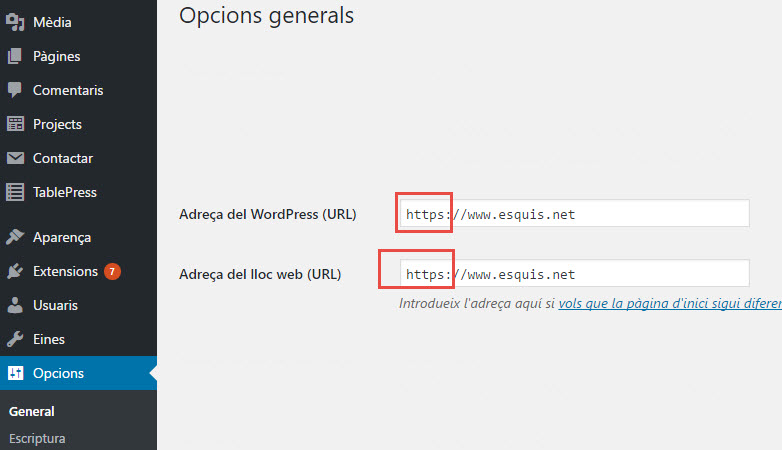
That’s it: our website now works over HTTPS. If it’s a WordPress site, we’ll need to go to the admin area and change the site address like this:
Scheduling automatic renewal
Open cron:
crontab -e
Choose Nano (for example) and add the automatic renewal task, twice a day. That way we’ll catch any problem in time if the certificate gets revoked:
#Renew the SSL certificate twice a day
0 3,15 * * * /certbot/certbot-auto renew --quiet --no-self-upgrade
In this example it runs twice a day, at 3 am and 3 pm.
Update: certbot-auto is no longer maintained. On current Ubuntu releases all you need is sudo apt install certbot python3-certbot-apache and sudo certbot --apache; renewal is scheduled automatically with a systemd timer.
Translated with the help of AI from the original article.